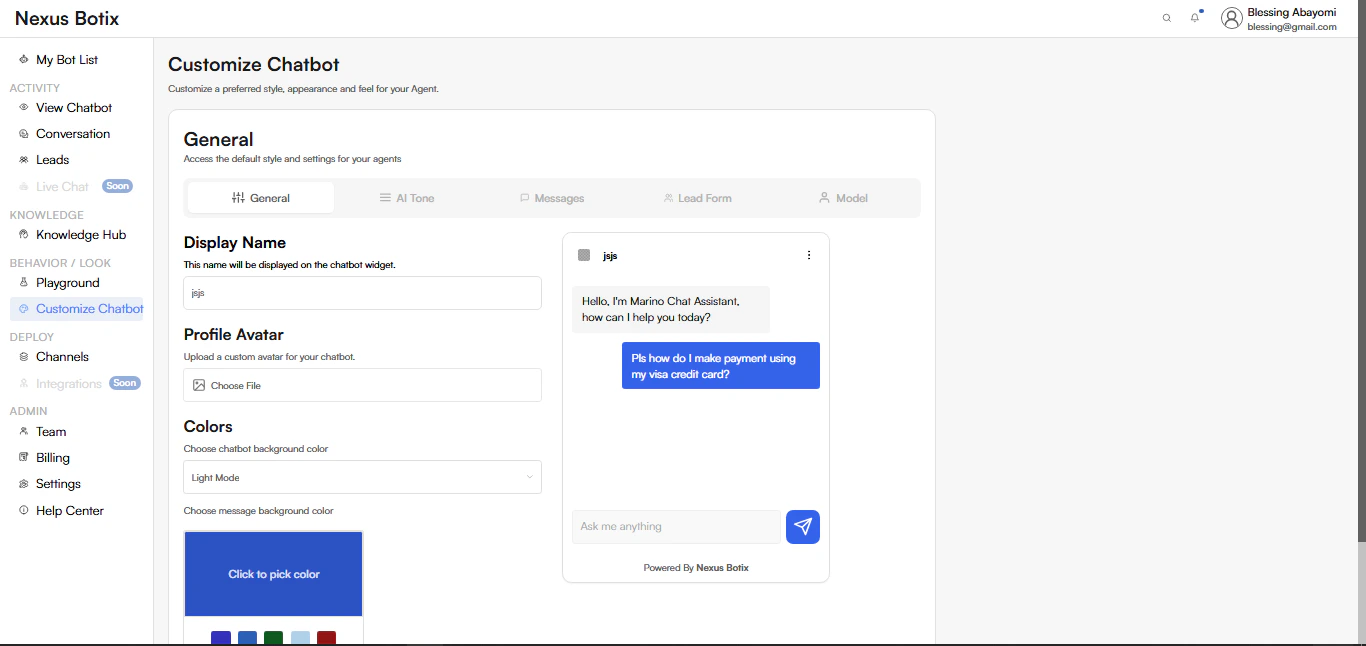
- Sets the name shown on the chatbot widget.
- This name appears at the top of the chat interface when users interact with your bot.
- Example: John Doe, Customer Support, Sales Assistant
- Upload a custom avatar or logo for your chatbot.
- Supported formats typically include PNG and JPG.
- The avatar appears beside chatbot messages.
- Choose between Light Mode or other available themes.
- Affects the overall background of the chat interface.
- Select the background color for chatbot messages.
- Use the color picker to choose from preset colors or define a custom brand color.
- Chatbot name and avatar
- Sample greeting message
- User messages and chatbot replies
- Message input field and send button
- Website chat widget
- Facebook Messenger
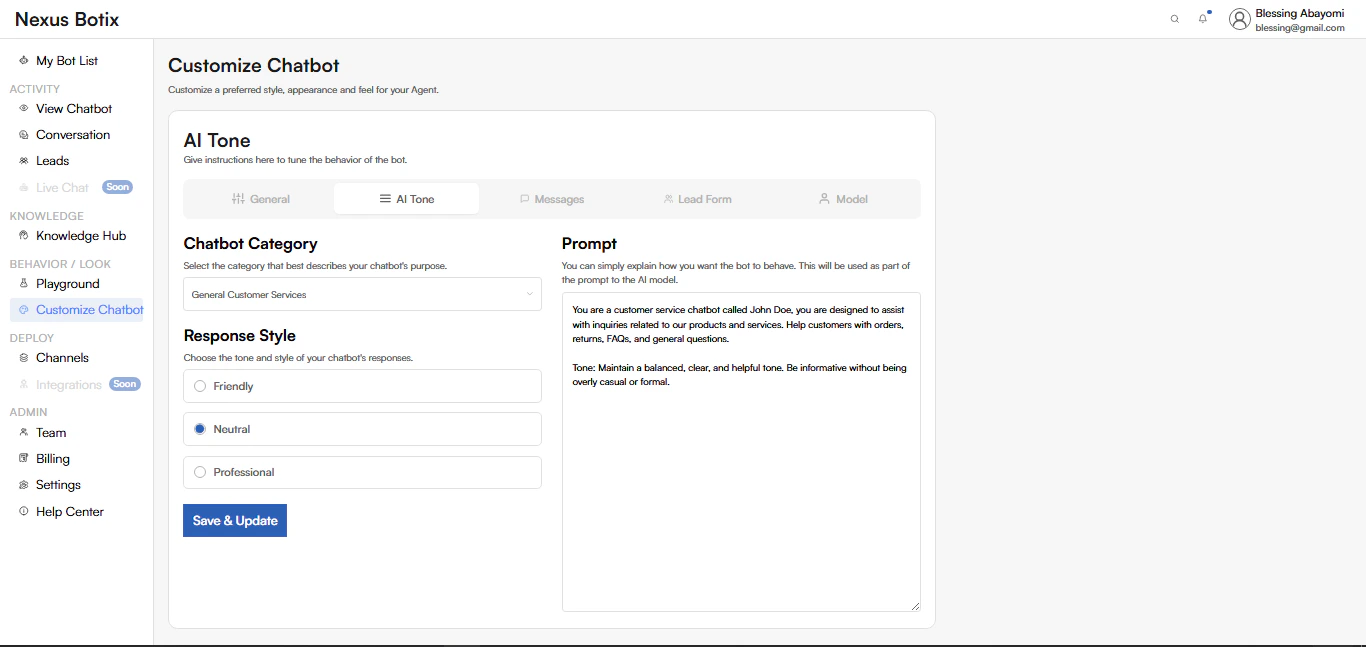
AI Tone The AI Tone section allows you to fine-tune how your chatbot behaves and communicates with users. Here, you define the chatbot’s purpose, response style, and core behavioral instructions that guide every interaction. Page Overview The AI Tone page is divided into two main sections:
- Chatbot Category & Response Style (left panel)
- Prompt Configuration (right panel)
- General Customer Services
- Technical Support
- Sales
- Marketing
- Human Resources
- Friendly – Warm, conversational, and engaging
- Neutral: Balanced, clear, and informative (selected by default)
- **Professional: **Formal, concise, and business-focused
- You are a customer service chatbot called John Doe, you are designed to assist with inquiries related to our products and services. Help customers with orders, returns, FAQs, and general questions.
- Chatbot identity and role
- Scope of assistance (e.g., orders, returns, FAQs)
- Tone and communication boundaries
- Overall behavior during conversations
- The new AI tone takes effect immediately
- All future chatbot conversations follow these instructions
- Changes apply across all connected platforms (Website, WhatsApp, Messenger)
- Message Configuration (left panel)
- Live Chat Preview (right panel)
- Encourage user engagement
- Suggest what users can ask
- Provide subtle guidance
- Introduce the chatbot
- Set expectations for assistance
- Create a friendly first impression
- Chatbot name and avatar
- Welcome message
- User messages
- Input field with placeholder text
- Send button
- The updated messages are applied immediately
- Changes affect all active chatbot channels
- New conversations will display the updated messages

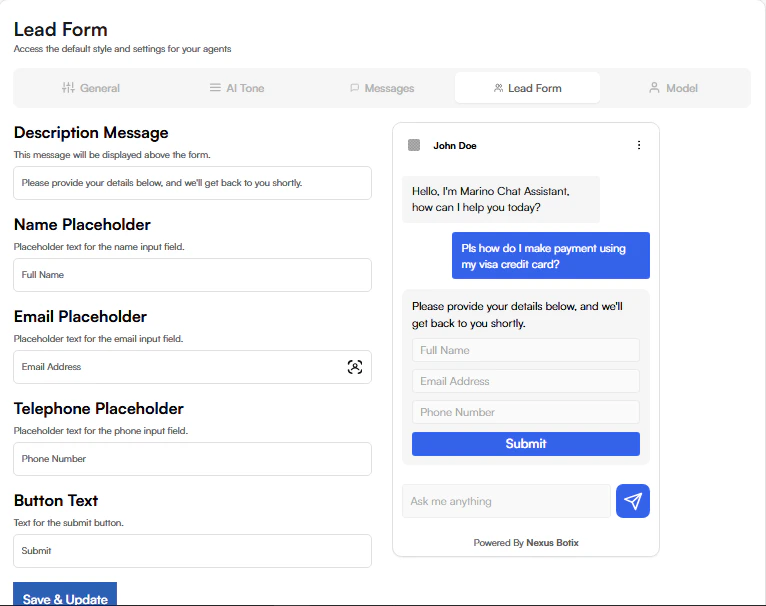
- Form Configuration (left panel)
- Live Chat Preview (right panel)
- Explain next steps to the user
- Reassure users about follow-up
- Increase form completion rates
- Request call-back details
- Enable direct follow-up
- Support sales or customer service workflows
- Send
- Contact Me
- Request Callback
- Sample conversation flow
- Assistant message prompting the form
- Lead form fields (Name, Email, Phone)
- Submit button
- Chat input area
- Updates apply immediately
- All agents using the default lead form are affected
- New conversations will display the updated form
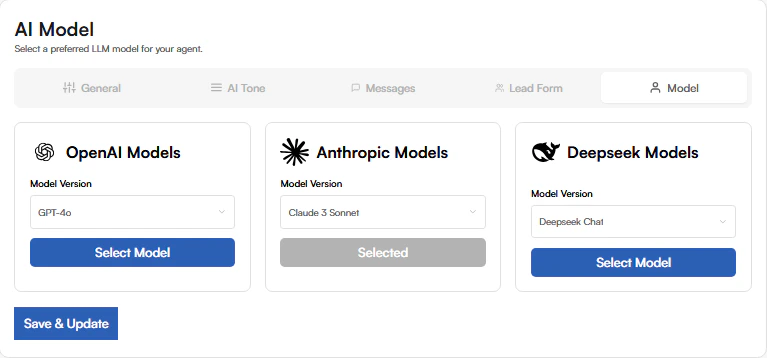
- OpenAI Models
- Anthropic Models
- DeepSeek Models
- General-purpose conversations
- High-quality reasoning and responses
- Balanced performance across tasks
- Long-form responses
- Clear, structured explanations
- Customer support and knowledge-based chats
- Fast conversational responses
- Cost-efficient deployments
- Lightweight chatbot use cases
- Only one model can be selected at a time
- The currently active model is marked as Selected
- Switching models updates your chatbot’s intelligence and response style
- The new model becomes active immediately
- All chatbot responses use the selected model
- Existing and new conversations are affected