> ## Documentation Index
> Fetch the complete documentation index at: https://docs.nexusbotix.io/llms.txt
> Use this file to discover all available pages before exploring further.
# Monitoring bot analytics
\*\*View Chatbot \*\*
**Engagement Overview**
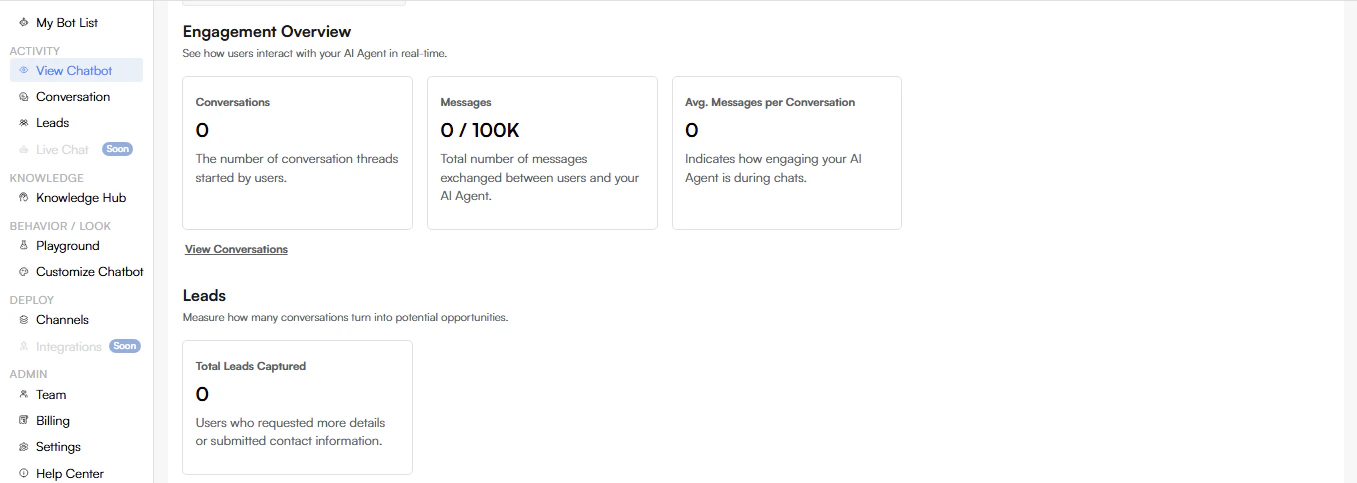
The Engagement Overview page provides real-time insights into how users interact with your AI Agent. It helps you monitor conversations, message volume, engagement quality, and lead generation at a glance.
**Page Overview**
**Conversations**
**Metric:** *Conversations*
**Description:** Displays the total number of conversation threads started by users.
**What it tells you:**
* Overall chatbot usage
* How often users initiate chats
**Messages**
**Metric:** *Messages (e.g., 0 / 100K)*
**Description:** Shows the total number of messages exchanged between users and your AI Agent within the current usage limit.
**What it tells you:**
* Chat volume
* Message usage against your plan limits
**Avg. Messages per Conversation**
**Metric:** *Avg. Messages per Conversation*
**Description:** Indicates how engaging your AI Agent is during chats.
**What it tells you:**
* Depth of conversations
* User engagement quality
Higher values generally indicate more meaningful interactions.
**View Conversations**
**Action:** *View Conversations*
**Description:** Opens the detailed conversation history, allowing you to review individual chat threads and user interactions.
**Leads**
The Leads section measures how effectively conversations convert into potential opportunities.
**Total Leads Captured**
**Metric:** *Total Leads Captured*
**Description:** Shows the number of users who requested more information or submitted their contact details through the chatbot.
**What it includes:**
* Lead form submissions
* Users requesting follow-up
**How to Use This Page**
* Monitor chatbot adoption and activity
* Track engagement trends over time
* Identify opportunities to improve AI Tone or responses
* Measure lead generation effectiveness
 **Training Data**
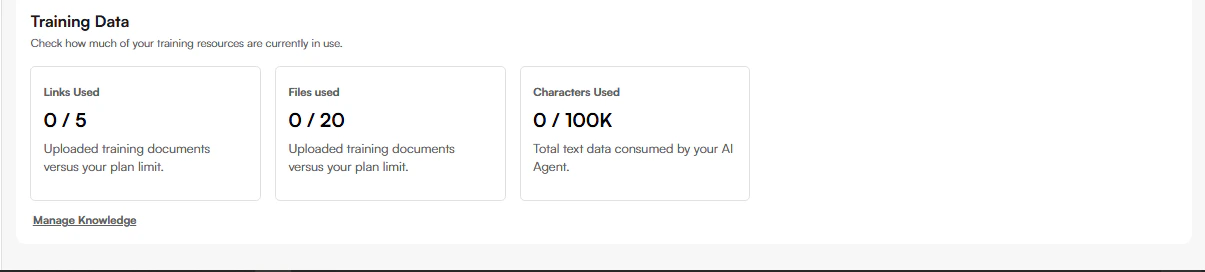
The Training Data section provides an overview of how much knowledge content your AI Agent is currently using. It helps you monitor resource usage and stay within your plan limits.
**Page Overview**
The Training Data section displays three usage cards:
* Links Used
* Files Used
* Characters Used
Each card shows current usage versus your plan limit.
**Links Used**
**Metric:** *Links Used (e.g., 0 / 5)*
**Description:** Displays the number of website links added as training sources compared to your plan limit.
**What it includes:**
* Crawled webpages
* Online documentation links
**Files Used**
**Metric:** *Files Used (e.g., 0 / 20)*
**Description:** Displays the number of uploaded training documents compared to your plan limit.
**What it includes:**
* PDFs
* Text files
* Other supported document formats
**Characters Used**
\*\*Metric: \*\**Characters Used (e.g., 0 / 100K)*
**Description:** Displays the total amount of text data consumed by your AI Agent.
**What it tells you:**
* Overall size of your training data
* Remaining capacity before reaching plan limits
**Manage Knowledge**
**Action:** *Manage Knowledge*
\*\*Description: \*\*Opens the Knowledge Hub, where you can:
* Add or remove links
* Upload or delete files
* Update existing training data
**Training Data**
The Training Data section provides an overview of how much knowledge content your AI Agent is currently using. It helps you monitor resource usage and stay within your plan limits.
**Page Overview**
The Training Data section displays three usage cards:
* Links Used
* Files Used
* Characters Used
Each card shows current usage versus your plan limit.
**Links Used**
**Metric:** *Links Used (e.g., 0 / 5)*
**Description:** Displays the number of website links added as training sources compared to your plan limit.
**What it includes:**
* Crawled webpages
* Online documentation links
**Files Used**
**Metric:** *Files Used (e.g., 0 / 20)*
**Description:** Displays the number of uploaded training documents compared to your plan limit.
**What it includes:**
* PDFs
* Text files
* Other supported document formats
**Characters Used**
\*\*Metric: \*\**Characters Used (e.g., 0 / 100K)*
**Description:** Displays the total amount of text data consumed by your AI Agent.
**What it tells you:**
* Overall size of your training data
* Remaining capacity before reaching plan limits
**Manage Knowledge**
**Action:** *Manage Knowledge*
\*\*Description: \*\*Opens the Knowledge Hub, where you can:
* Add or remove links
* Upload or delete files
* Update existing training data