> ## Documentation Index
> Fetch the complete documentation index at: https://docs.nexusbotix.io/llms.txt
> Use this file to discover all available pages before exploring further.
# Inviting team members
**Team Members**
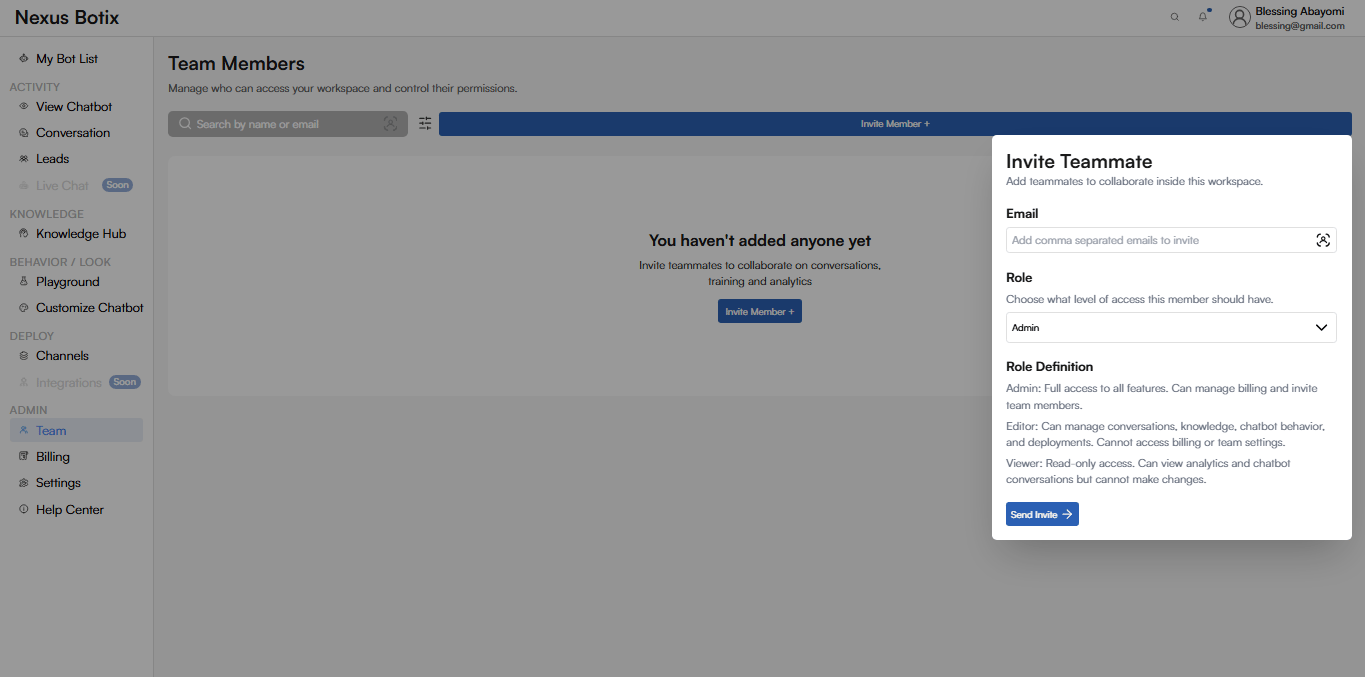
The Team Members page allows you to manage who can access your Nexus Botix workspace and control their permissions. This ensures secure collaboration across conversations, training, and analytics.
**Page Overview**
The Team Members page enables you to:
* Invite teammates to your workspace
* Assign roles and permission levels
* Search and manage existing members
When no members have been added, a prompt is displayed encouraging you to invite teammates.
**Team Member List**
**Search**
\*\*Field: \*\**Search by name or email*
**Description:** Allows you to quickly find existing team members once they have been added.
**Invite Member**
**Invite Member Button**
**Action:** *Invite Member +*
**Description:** Opens the Invite Teammate panel where you can add new members to the workspace.
**Invite Teammate Panel**
The Invite Teammate panel slides in from the right and contains the following fields:
**Email**
**Field:** *Email*
**Description:** Enter one or more email addresses to invite teammates.
**Role**
**Field:** *Role*
**Description:** Select the level of access the invited member should have.
**Available Roles:**
* **Admin**
Full access to all features. Can manage billing and invite team members.
* **Editor**
Can manage conversations, knowledge, chatbot behavior, and deployments. Cannot access billing or team settings.
* **Viewer**
Read-only access. Can view analytics and chatbot conversations but cannot make changes.
**Send Invite**
**Action:** *Send Invite*
\*\*Description: \*\*Sends an invitation email to the specified addresses. Invited users will gain access once they accept the invitation.